
Blog

10 Tips for Buying Computer Graphic Design Images

Computer Graphic Design Images can make a product page clearer, a presentation more persuasive, or a brand feel more coherent. The wrong image can do the opposite. A Venngage survey of marketers reported that 50.5% considered visual content very important to their marketing strategy. That figure reflects marketers’ opinions, not a guarantee of better results. Still, it shows why image selection deserves more than a quick glance at a thumbnail.

Paul Rand, the influential graphic designer, described design as “the silent ambassador of your brand.” His words offer a useful lens for choosing graphics: an image communicates before readers study its caption. Check whether its subject fits your message, whether its colors work beside your existing palette, and whether fine details remain crisp on a phone screen. Small things matter. A beautiful preview may hide awkward cropping or a file that looks soft when enlarged. Not every purchase is a good fit.

This guide presents 10 practical tips for buying Computer Graphic Design Images, from checking resolution and file formats to comparing licensing terms and testing an image in its intended layout. Adobe’s Digital Trends research and visual-content studies from marketing organizations point to a broader lesson: audiences encounter content across many channels and screen sizes. That makes adaptability valuable, but it does not make every versatile image worth buying. Pause over the details. A little skepticism can save time, budget, and a frustrating redesign.
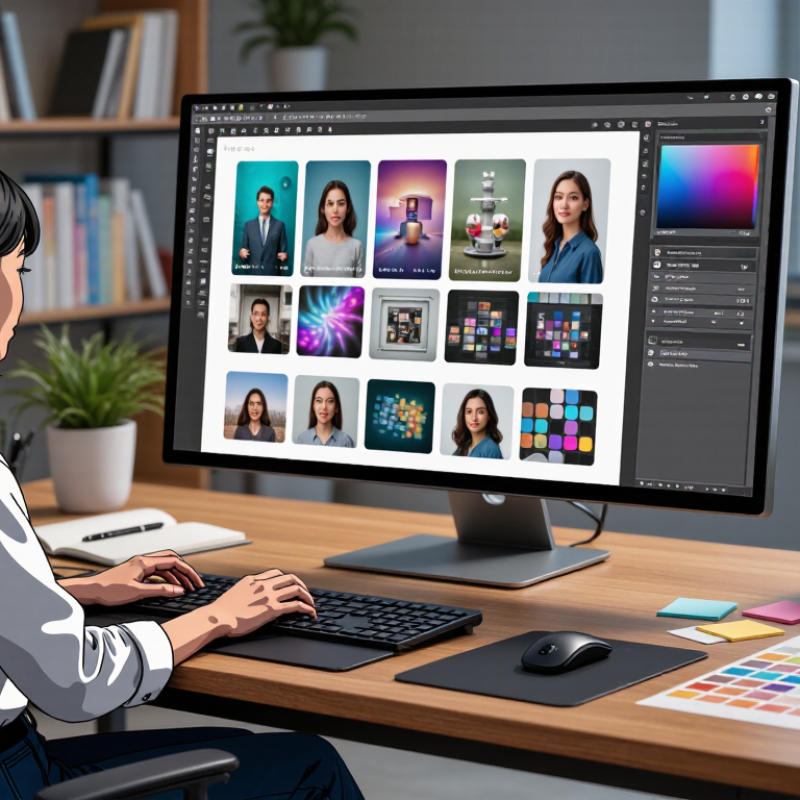
10 Tips for Buying Computer Graphic Design Images

Clarify Your Design Goals and Image Requirements

Before buying an image, write down what it must do. Is it a hero banner, a product detail, or a small background texture? Note the audience, mood, focal point, and where the image will appear. A calm wellness page might need soft window light and open space for text; a technical diagram needs crisp labels and room to crop. Be specific about dimensions, orientation, file type, resolution, and whether the image must work on mobile. Also check usage rights and whether the license covers your intended channels.

Image requirements affect more than appearance. The HTTP Archive’s 2022 Web Almanac reported that images accounted for about 42% of median desktop page weight. Large files can slow a page, so specify a suitable delivery size rather than buying the largest available file by default. Nielsen Norman Group’s eye-tracking research found that people often scan web pages in an F-shaped pattern. Keep important visual information near likely viewing paths, but test the actual layout; scanning habits vary. This detail is easy to overlook. A brief can still be too rigid: exact pixel targets may fail when responsive layouts change. Define the crop and focal area, then review a sample at desktop and phone sizes before purchase.

Evaluate Image Quality, Format, and Resolution

A polished thumbnail can hide trouble. Open the full file at 100% and inspect hair, lettering, and fine edges for halos or compression blocks. Check the actual pixel dimensions, not just the preview size. For a 12-by-18-inch print at 300 pixels per inch, you need 3,600 by 5,400 pixels. That’s a useful target, not a universal rule; viewing distance and print method matter.

Choose formats for the job. Vector files suit logos and crisp illustrations because they scale without pixelation. Transparent graphics often need PNG, while photographs may work well as JPEG or another efficiently compressed format. Ask whether the download includes a high-resolution original and an embedded color profile. HTTP Archive’s 2022 Web Almanac found images account for roughly half of median mobile page weight, a reminder that format affects more than appearance. Smaller files can load faster, but excessive compression can flatten texture and introduce ugly artifacts.

I once trusted a large file size. It still looked soft. File size alone proves little; inspect detail and confirm the asset’s intended use. If possible, test a crop at the final dimensions before buying. Slightly awkward, perhaps, but cheaper than discovering blurred eyes or jagged curves after delivery.

Check Licensing Terms and Commercial Usage Rights

Before buying a computer graphic design image, read the license, not just the preview page. Check whether commercial use is allowed for your specific project, such as a client website, product packaging, or paid advertisement. A “commercial” label may still come with limits. Read the grant.

Look for restrictions on print quantities, audience size, editing, attribution, and how many people can access the file. Some licenses allow an image in a finished design but prohibit reselling or sharing the original file. That distinction matters when delivering editable files to a client or adding artwork to a reusable template. Keep that record.

Save a copy of the license and receipt with the project files. Terms can change, and a screenshot can help you recall what you agreed to at purchase. If the wording is unclear, ask the seller for written clarification before you publish. I have seen teams treat a small image purchase as blanket permission for every future campaign; that assumption is easy to make and harder to unwind. When a project has unusual reach or several users, get qualified legal advice rather than guessing.

Compare Suppliers, Prices, and Purchase Options

Compare suppliers by license scope, not thumbnail count. Check whether a purchase covers commercial use, print runs, team access, and future edits. A low single-image price can cost more if each use needs a separate license. Subscription plans suit frequent projects, while one-time purchases may work better for occasional briefs. Read renewal terms and download limits before comparing totals.

Tip: Make a small comparison sheet. Record price, file formats, resolution, license limits, and refund terms. The HTTP Archive’s 2022 Web Almanac found that images made up about 45% of median desktop page weight. That makes file size and format practical buying criteria, not minor details. Ask suppliers for large source files and web-ready versions when both are needed. A beautiful preview is not enough.

For a campaign with several layouts, compare the cost of a bundle with individual purchases. For one product page, a single-use license may be sufficient. Check whether cropping, recoloring, or adding text is permitted. Save the license receipt and the asset’s original filename with the project files. Small habit. I still sometimes compare only the headline price, then notice a usage limit late; a clear checklist helps catch that before checkout.

10 Tips for Buying Computer Graphic Design Images — Compare Suppliers, Prices, and Purchase Options
Tip What to Compare Supplier or Purchase Option Typical Price (USD) License and Usage Check Best Fit
1. Define the image type you need. Choose raster photos or textures for detailed imagery, and vector artwork for scalable illustrations, icons, or logos. Compare specialist illustration libraries with general stock-image collections. Standard raster or vector downloads commonly range from about $5–$30 per item when purchased individually; prices vary by license and supplier. Check the permitted file formats and whether the download includes editable source files. Projects with a clear format, editing, and output-size requirement.
2. Compare subscription costs with single purchases. Calculate the effective cost per download using the plan’s actual monthly or annual fee and included download limit. Image subscription plans versus pay-per-download purchases. Subscriptions may work out to roughly $0.20–$5 per asset with regular use; individual downloads often cost more per asset. These are indicative ranges, not quoted plan prices. Confirm download limits, rollover rules, cancellation terms, and whether previously downloaded assets remain licensed. Frequent buyers who can use the plan’s included downloads.
3. Match the license to the project. Compare standard commercial use with extended rights for uses such as merchandise or high-volume distribution. Standard license, extended license, or a custom license. Extended rights can cost substantially more than a standard download; some are priced from tens to hundreds of dollars or more. Check print-run limits, resale restrictions, audience or distribution limits, and whether the license covers advertising. Products, merchandise, templates, or campaigns with broad distribution.
4. Check resolution and file dimensions. Compare pixel dimensions for digital use and image resolution for the intended print size. Low-resolution preview, standard download, or high-resolution download. Higher-resolution files may be included or sold at a different price, depending on the supplier and license. For print, confirm the pixel dimensions are sufficient at the final size; for web, avoid paying for unnecessary file size. Designers preparing both screen and print versions.
5. Review the full license, not just the listing. Compare allowed users, usage channels, duration, territory, and whether client work is permitted. Royalty-free licensing, rights-managed licensing, or a direct creator license. Prices vary widely by image, usage, and supplier; request a quote when the terms are usage-specific. “Royalty-free” does not mean unrestricted or free of charge. Read the license terms before purchase. Commercial work with specific distribution or client requirements.
6. Verify model and property releases when relevant. Check whether recognizable people, private property, or protected artwork require additional permissions. Commercially released stock image versus editorial-use-only image. Editorial-only files may be priced similarly to other downloads, but they are not suitable for many promotional uses. Confirm release status and restrictions; an editorial license generally does not authorize advertising use. Campaigns, product packaging, and other promotional designs.
7. Compare free sources carefully. Check the exact reuse, attribution, modification, and redistribution terms for each file. Free-to-download image libraries or public-domain resources. $0 download price; attribution, permitted use, and other conditions depend on the asset’s license. Do not assume every image on a free site has the same license or is cleared for commercial use. Low-budget projects where the license clearly matches the intended use.
8. Compare quality and editability before buying. Inspect previews for artifacts, cropping, color consistency, and whether layers or vector paths are included. Flattened image file versus editable vector or layered source file. Editable source files may be included or sold separately; check the listing rather than assuming they are included. Confirm the file type, included assets, and any restrictions on modifying or redistributing source files. Workflows that require recoloring, resizing, or adapting the artwork.
9. Consider custom commissioning for unique work. Compare stock-image cost with a creator’s fee, revision allowance, delivery schedule, and rights transfer. Commissioned illustration or custom graphic design. Small commissions can range from tens to hundreds of dollars or more; scope, complexity, and usage rights affect the quote. Agree in writing on ownership or license, permitted uses, revisions, source files, and any exclusivity. Distinctive brand visuals or artwork that is difficult to find in stock libraries.
10. Compare the total cost before checkout. Include taxes, currency conversion, credit packs, subscription renewal, and any added license fees. Direct purchase, prepaid credits, or recurring subscription. The displayed image price may not include taxes or optional rights; check the final checkout total and renewal price. Save the receipt and license details with the project files, and note the purchase date and permitted use. Any buyer who needs a clear budget and a record of usage rights.
Price note: All amounts are indicative USD ranges, not current quotes. Actual prices and license terms vary by supplier, asset, region, plan, and intended use. Confirm the final price and license directly before purchasing.

Confirm Compatibility and Organize Your Image Files

Before buying a graphic design image, check that its file type works with your editing software and intended project. A preview may look crisp while the downloaded file is too small for a poster. Check pixel dimensions, resolution, color mode, and whether the image has a transparent background. For print, request or review a full-size sample when possible. For web use, confirm that the file can be converted without losing needed detail. Small checks matter. I learned this late, after stretching a tiny image across a large layout.

Once the file is downloaded, give it a clear name that describes its subject, version, and use, such as “blue-leaf-banner-print.” Store the original separately from edited copies, and sort images into project folders rather than one crowded downloads folder. Add a short note with the source, purchase date, and permitted uses; those details are easy to forget months later. I sometimes over-organize and waste time choosing folder names, so a simple structure is better than a perfect one. Keep a backup on a separate drive or secure storage, and open a few files after copying them. A folder can look complete but still contain a damaged file.

Go to Top